
📸 Photo Lights Script
Studio-Grade Lighting for FiveM - Sandbox Framework
PREVIEW VIDEO
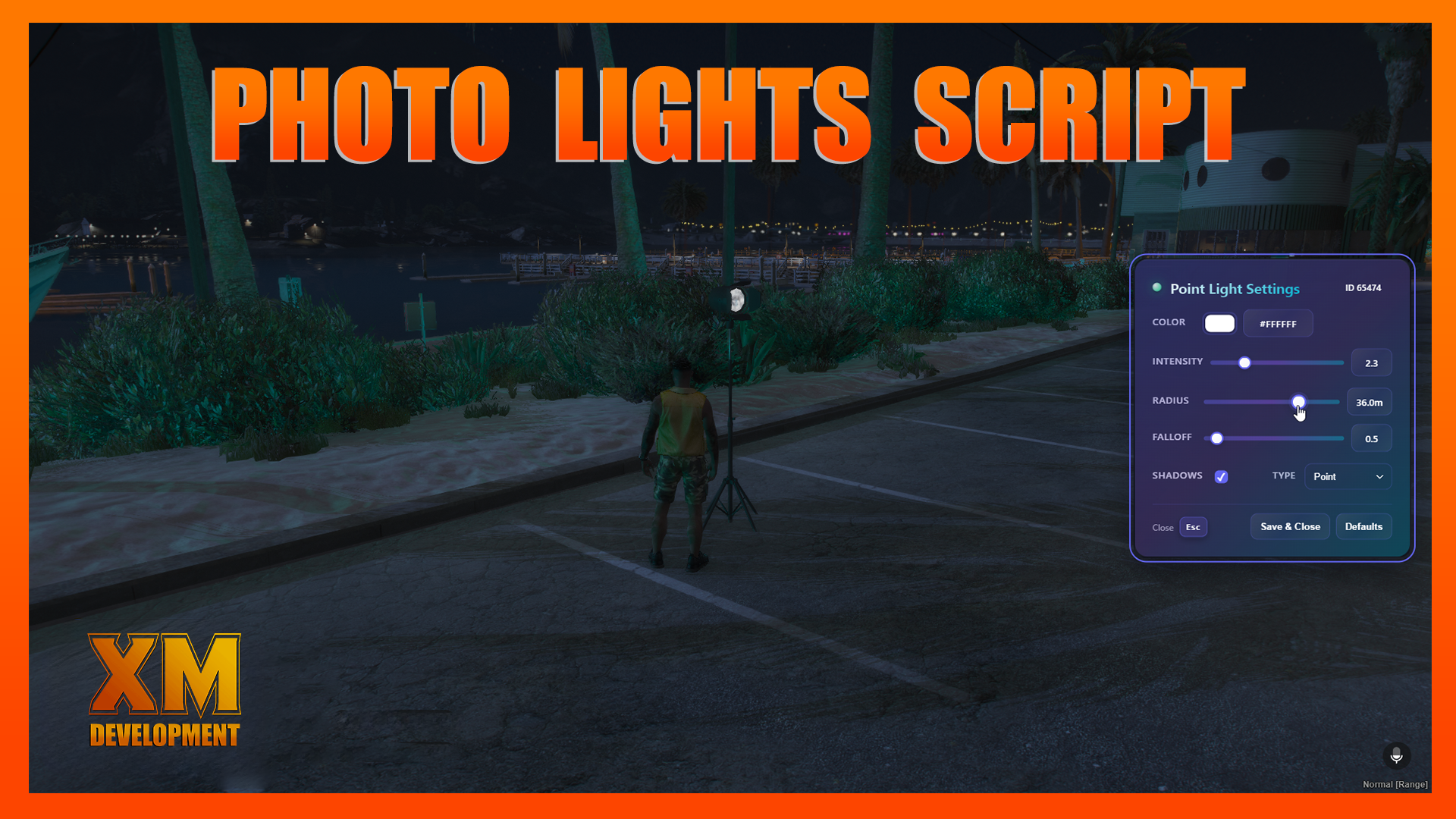
Bring proper film/photography lighting to your server. Place physical light props, then fine-tune realistic lights (spot / point / capsule) with an intuitive UI. Perfect for media crews, events, interiors, RP studios, showcases, dealerships, music videos—anything that deserves good lighting.
Supports: Sandbox Framework or configure in the built-in Bridge.
✨ Key Features
Three light types:
spot,point, andcapsulebeams.Precise controls: color (hex), intensity, radius, falloff/softness, spot inner/outer cone, capsule length, cast shadows.
Per-model tuning: per-prop offsets & default aim direction via
Config.Models(see below).Place & adjust quickly: open the menu with /lightprop or F7 (configurable).
Saved between restarts: optional persistence to your database (
SaveProps = true).Permissions ready: toggle with
UsePerms = trueand configure inbridge/server.lua(deny message included).Version checks: keep your script current (
Version = true).Optional targeting icon color: customize the target UI color when using a target system.
🧰 What’s Included
Client & Server logic to place props and render lights, using 3 unique custom UI's.
Configurable models with human-friendly labels and offsets.
Locales (success/error/unauthorized).
Debug tools: toggle dev prints, beam lines, and emitter markers.
🕹️ How It Works (In-Game)
Open the menu:
Command:
/lightpropKeybind:
F7
(Both can be changed inconfig.lua.)
Pick a light prop model (e.g., Studio Light, Work Light, Floor Lamp).
Place & rotate using the controls below.
Adjust the light (color/intensity/radius/falloff/cones/capsule/shadows) live.
Default Controls (placement)
Rotate (Yaw): Mouse Wheel Up/Down
Pitch Up/Down: Right/Left Mouse Button
Roll Left/Right: Arrow Left/Right
Snap to Ground: Left ALT
Height Up/Down: Arrow Up/Down
Place: Enter
Cancel: Backspace
(Do not change these in the config; they’re bound in the react js code for reliability.)
🧪 Supported Models (examples)
Pre-configured models with labels, offsets, and default aim direction:
prop_studio_light_01— Studio Light 1prop_studio_light_02— Studio Light 2prop_studio_light_03— Studio Light 3prop_worklight_01a— Work Light 1prop_worklight_03b— Work Light 2apa_mp_h_floorlamp_c— Floor Lamp 1apa_mp_h_floorlamp_a— Floor Lamp 2
Add your own any time—just copy an entry and adjust:
⚙️ Config Highlights
Version   = true,     -- auto version checks
UsePerms  = true,     -- gate access via bridge/server.lua
Command   = "lightprop",
Keybind   = "F7",
IconColor = "#2e31ffff",  -- target icon tint
SaveProps = true,     -- persist placed props to database
MaxHeight = 2.5,      -- placement height clamp
Locales (built-in):
prop_saved,prop_deleted,prop_error,prop_failed,cant_place,remove_prop,adjust_light,unauthorized.
Debugging (optional):
Debug,DebugLines,DebugEmitter
🔐 Permissions
Set
UsePerms = trueand configure your allow/deny logic inbridge/server.lua.Users without permission see
Locales.unauthorized(default: “Not Authorized!”).
(Works great alongside ACE/roles; you decide the policy in the bridge.)
💾 Persistence
SaveProps = truestores placed props in your database so they’re restored after restart.Turn it off for temporary/event setups.
🧭 Targeting & UI
Use a target system (e.g.,
ox_target, qb-target, qtarget), the script adds interaction to placed lights to Adjust or Remove them. Customize or add your own in bridge/client.lua.Customize the target’s icon color (ox_target option) with
IconColor.
🛠️ Installation
Drag & drop the resource into your server.
Configure
config.lua(models, command, keybind, permissions, persistence).(If using target) ensure your target bridge is enabled.
Start the resource and test with
/lightpropor F7.
✅ Use Cases
RP photography studios, news stations, film crews.
Interiors & scene dressing with real illumination.
Car meets & dealer showrooms, galleries, stages, clubs.
Event lighting and cinematic screenshots/trailers.
📎 Notes
OneSync recommended for smooth entity networking (standard for modern servers).
Debug options are available for creators; keep them off in production.
You can extend the Models list at any time without touching core code.